Discover
omnivista_discoverFinds the OmniVista Cirrus data that answers a question: sites, devices, alarms, VLANs, Wi-Fi analytics.
Ask about your sites, devices, alarms and Wi-Fi in plain language. Read-only, with your own OmniVista Cirrus credentials.
Server addresshttps://mcp.ediapps.net/mcp
omnivista_discoverFinds the OmniVista Cirrus data that answers a question: sites, devices, alarms, VLANs, Wi-Fi analytics.
omnivista_queryReads that data with your credentials and returns only the result the question needs.
omnivista_documentationSearches and reads the official OmniVista Cirrus documentation.
Examples only: the answers come from your own network.
In OmniVista Cirrus, open Applications from your user menu and create one. Its App ID and App Secret are your credentials.
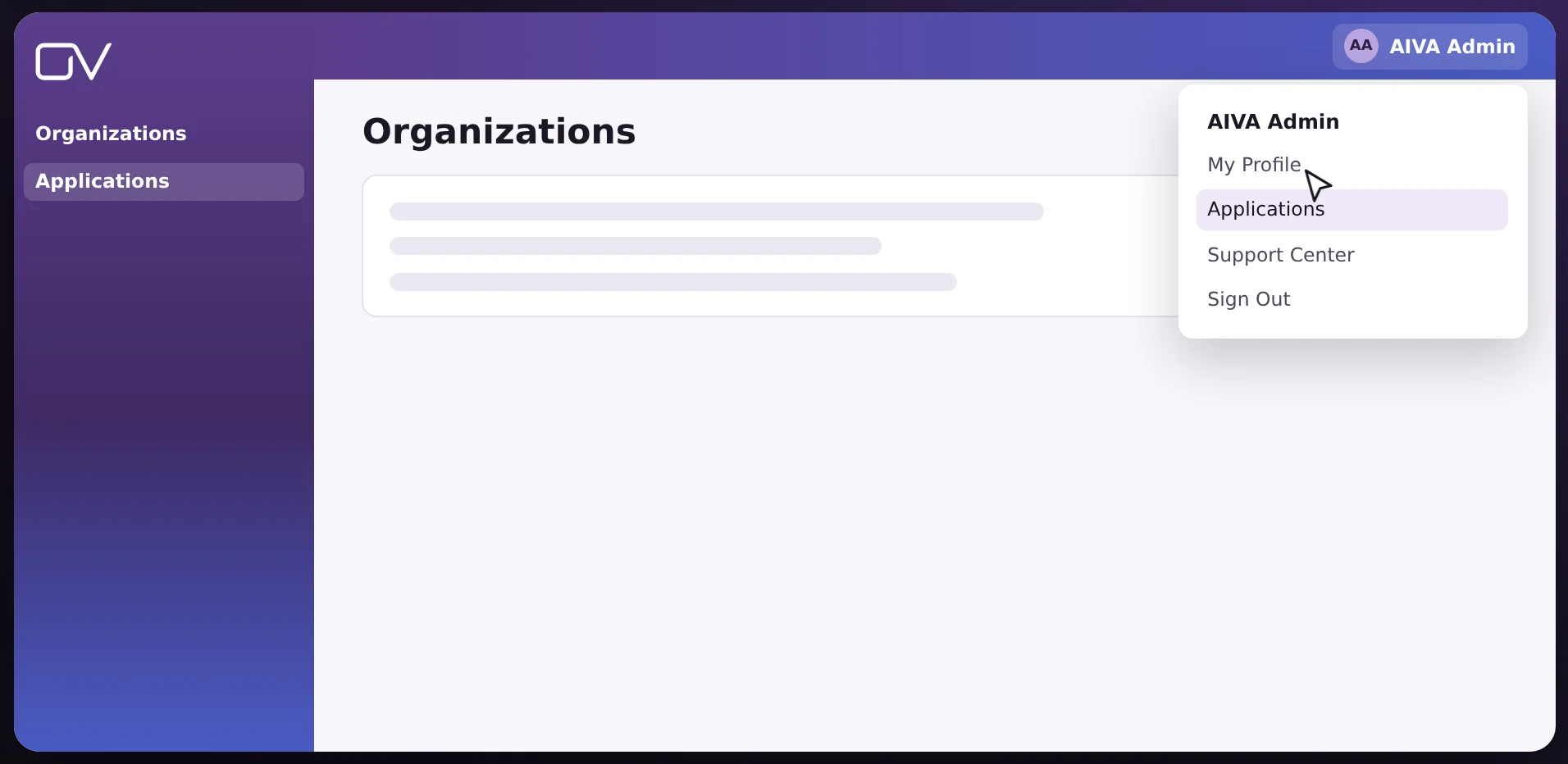
In your AI assistant, add a custom connector with this server address: https://mcp.ediapps.net/mcp
When it connects, the assistant opens the OmniVista sign-in page: enter your App ID, App Secret and region, then ask your question in plain language.
The region is the first part of your OmniVista Cirrus address: for https://eu.manage.ovcirrus.com, it is eu.
Sign in to OmniVista Cirrus. The labels below are the ones OmniVista shows in your language.
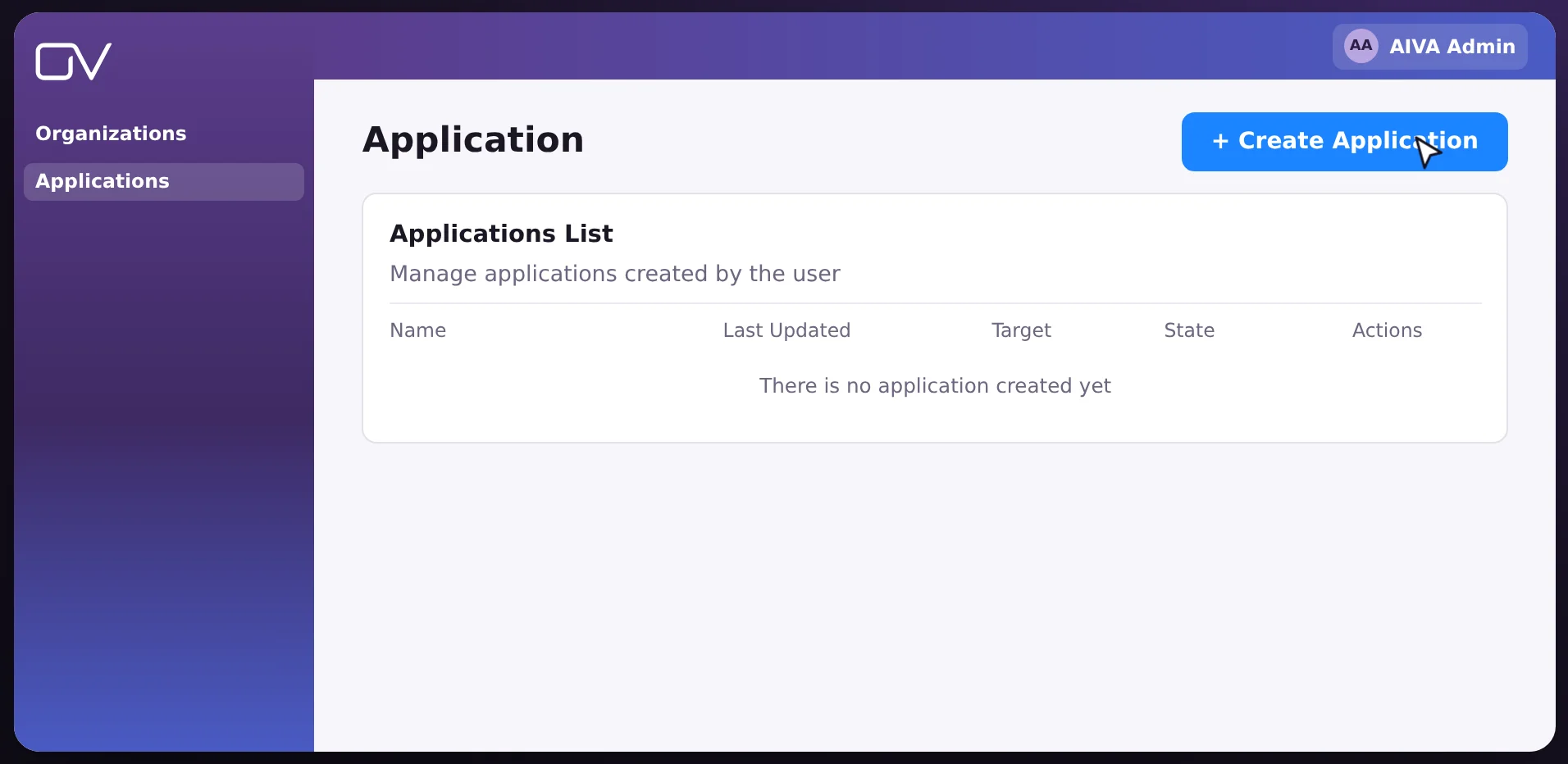
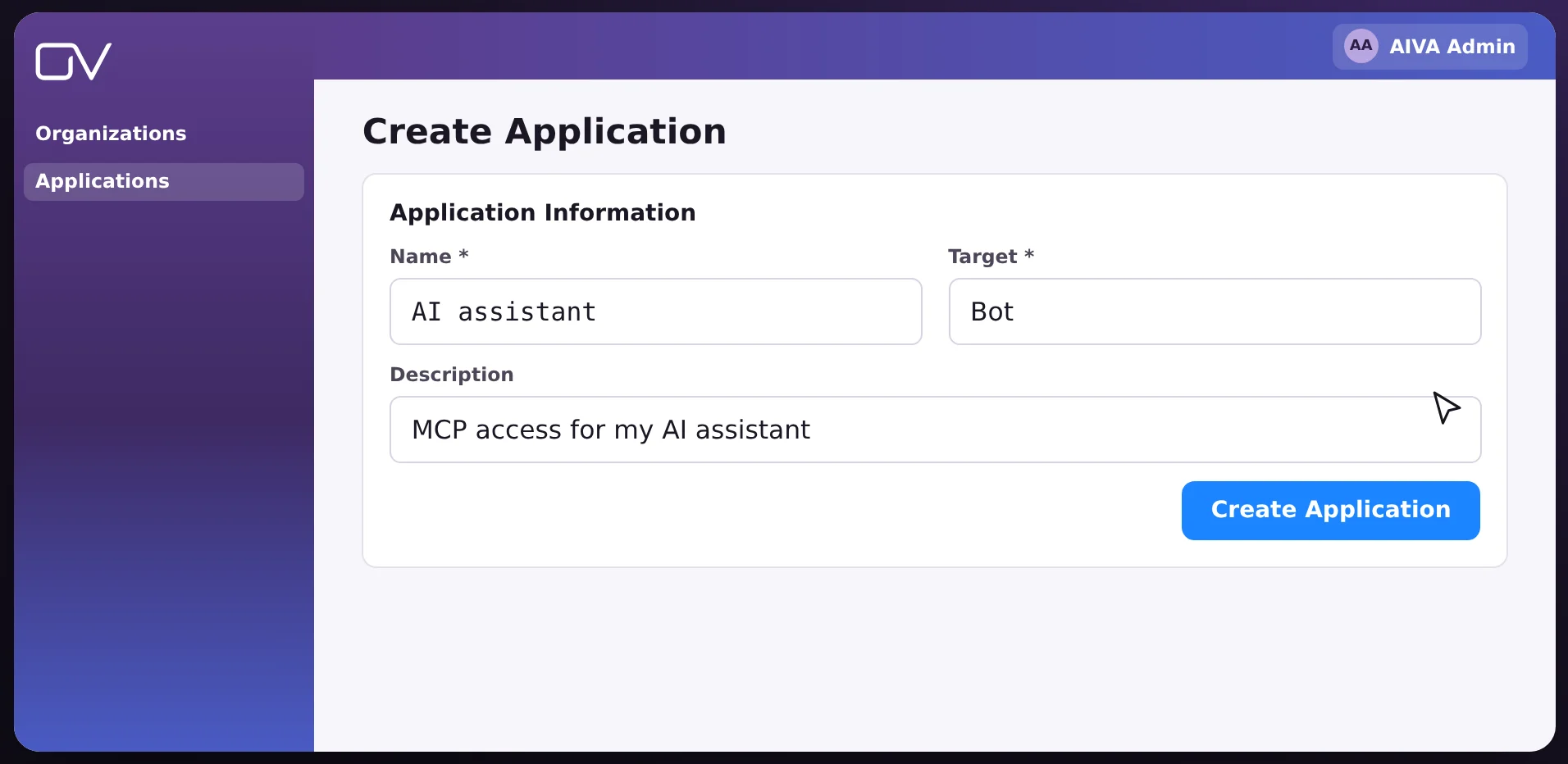
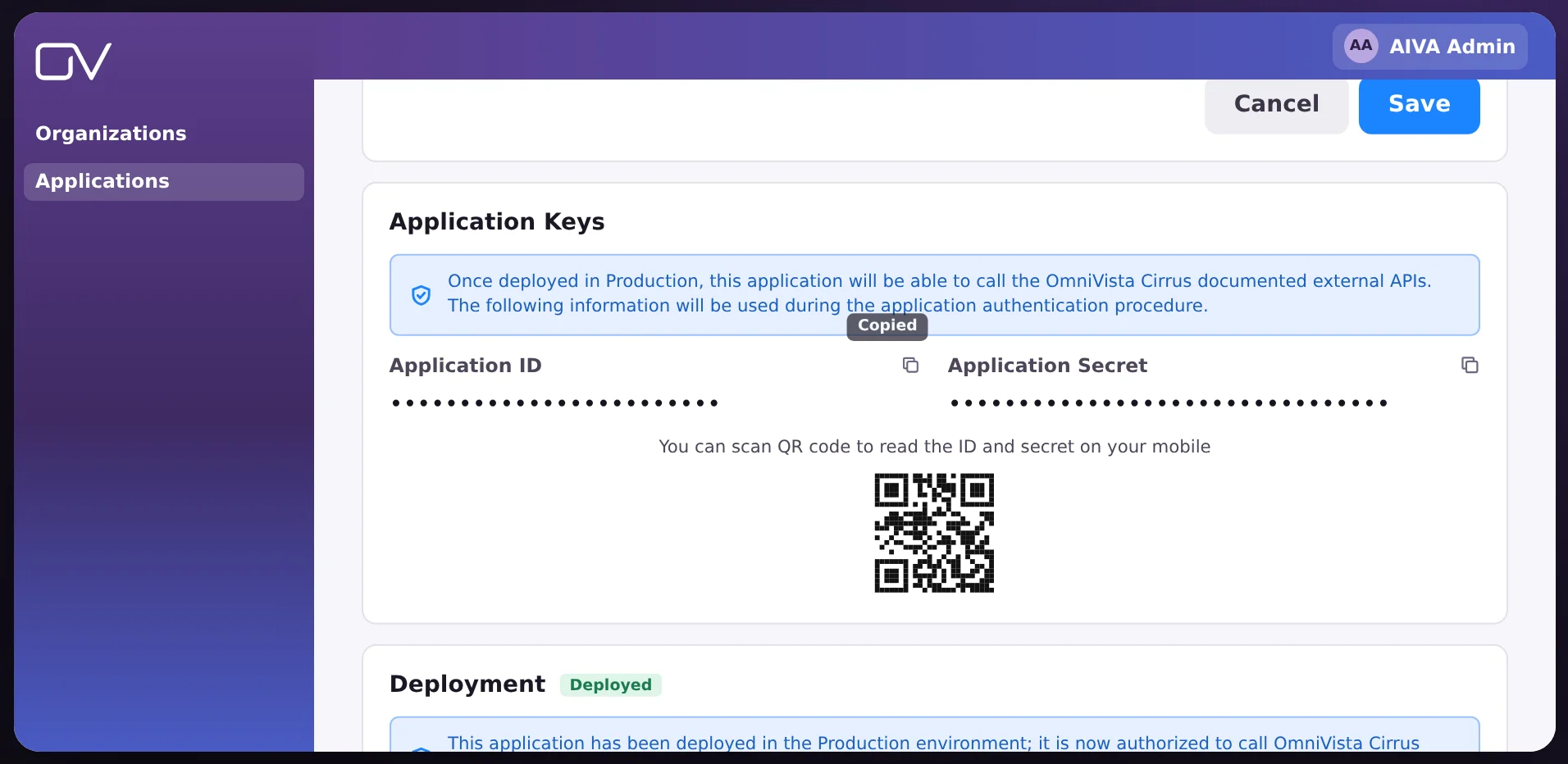
These are the App ID and App Secret your assistant asks for. Keep the secret to yourself: whoever holds it reads your network as you.
Use the server address in any of these clients.
Server addresshttps://mcp.ediapps.net/mcp
https://mcp.ediapps.net/mcpOn Team and Enterprise plans, an owner first adds the connector in Organization settings › Connectors.
https://mcp.ediapps.net/mcpAvailable depending on your plan and on the policy of your workspace.
https://mcp.ediapps.net/mcpAdding a connector requires administrator rights.
Send these headers with every request to https://mcp.ediapps.net/mcp:
Authorization: Bearer <base64(appId:appSecret)>
X-OV-Region: <region>
The region is the first part of your OmniVista Cirrus address: for https://eu.manage.ovcirrus.com, it is eu.
The server only reads: your configuration never changes.
Every request uses your App ID and App Secret: you see exactly what your account sees, nothing more.
No database and nothing written to disk: sessions stay in memory and expire. Your secret is never logged.
Sessions, limits and caches are kept per credential: no client ever sees the data of another.